
Updated 29 October 2026
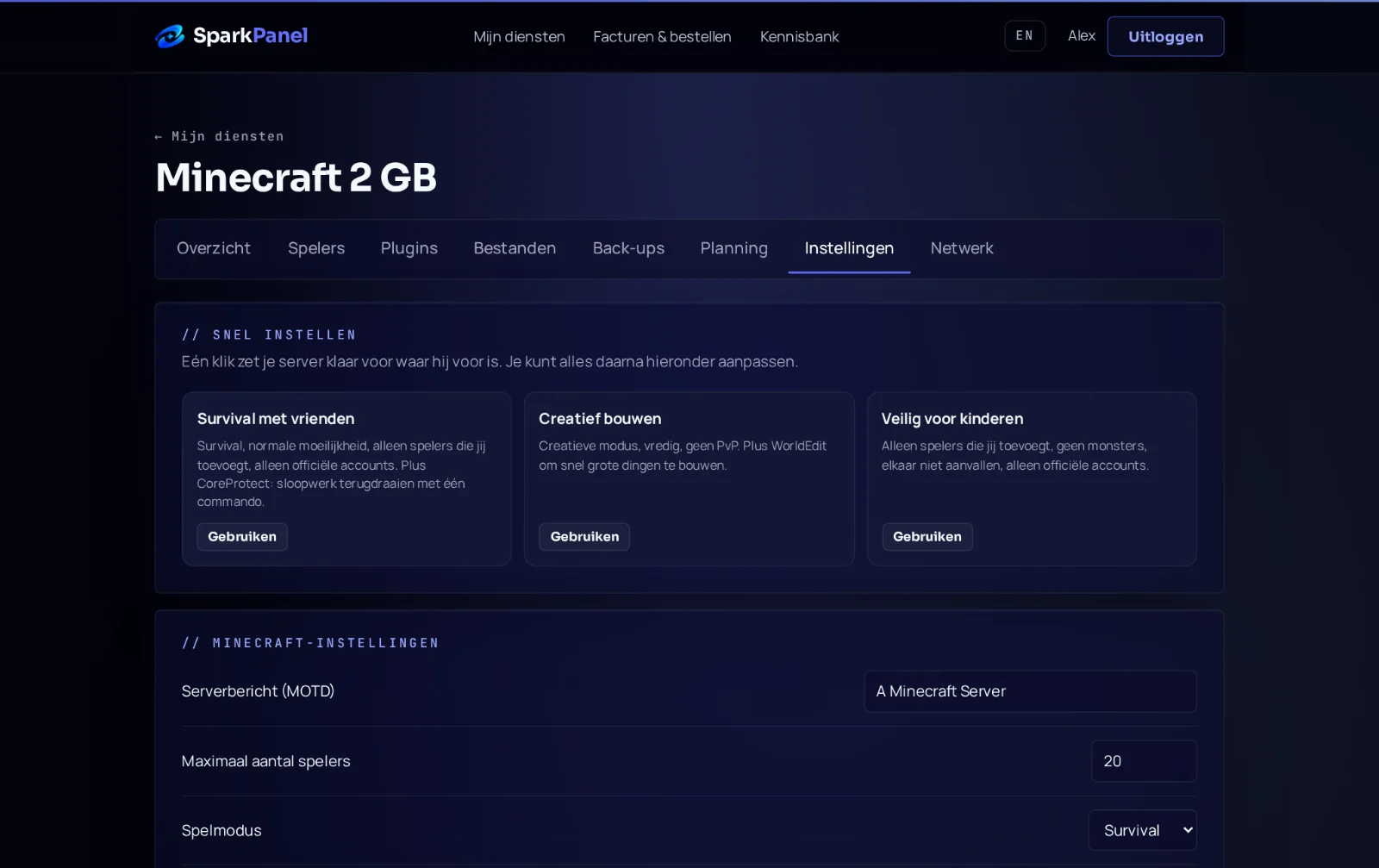
In SparkPanel you manage your game server from one place. Besides Overview (start, stop, live console), every game server has the tabs Files, Backups, Schedules and Settings, plus Databases on plans that include one. They work on your phone too.
Files
- Browse: click a folder to open it; the path at the top takes you back.
- Edit: click a text file (for example
server.properties, a.ymlor.jsonconfig) to open it in the editor, change it and click Save. Most changes need a restart. - Upload: click Upload and choose one or more files (up to 100 MB each). They go straight into the folder you have open.
- Download, Rename and Delete are next to every file.
- New folder creates a folder in the current location.
Backups
- Create backup makes a full copy of your server. Give it a name such as "before update". It appears in the list when it's ready.
- Restore puts a backup back. Your server is stopped during the restore. You can choose to also delete files that were added after the backup.
- Download gives you the backup as an archive for your own PC.
- Your plan has a fixed number of backup slots. When they are full, delete an old backup first.
Besides these backups, we make an encrypted backup of every server each night at a separate location.
Schedules
Let your server do things automatically. Choose what, how often and the time (Amsterdam time):
- Restart the server, for example every day at 05:00. That keeps most game servers fast.
- Make a backup, for example every 6 hours.
- Run a console command, for example
say Restart in 5 minutesat 04:55 before a 05:00 restart.
Every schedule shows when it runs next. Run now tests it straight away; Delete removes it.
Settings
All game settings in one form: for example server name, world seed, version, max players or the FiveM license key. Change a value, click Save and restart the server. Passwords and keys stay hidden until you click Show. Values that belong to your plan (such as ports) are shown but can't be changed. On Minecraft you can also choose the Java version, which older Minecraft versions and modpacks sometimes need.
Server software (Minecraft)
Under Settings → Server software you switch between Paper (plugins), Vanilla, Fabric, Forge and NeoForge (mods), in any Minecraft version ("latest" or a number like 1.20.1). Stop your server first. Your files and configs stay; only the server software is replaced and installed again, which takes about a minute.
world-before-fabric-20261021-0711. To go back, switch again and rename that folder to world in Files.Modrinth modpacks: choose Modrinth modpack and paste the pack's link, like https://modrinth.com/modpack/adrenaserver. With "latest" you get the newest version of the pack; with a Minecraft version like 1.20.1 the newest pack version for that Minecraft version. Fabric, Quilt, Forge and NeoForge packs work. Your old mods folder is kept under a new name. For a CurseForge modpack, email us and we set it up for free.
Databases
On plans with a database (FiveM), create one with a name and click Create database. You get the host, port, username and password, plus a ready-to-use connection string. New password replaces the password straight away; Delete removes the database and everything in it.
Network
Every port of your server, with the full address players connect to (click to copy). The main port is the one players use. Give a port a note (for example "voice chat") or click Make main port and restart your server. Need an extra port, for example for a voice chat mod or a map plugin? Every Minecraft Java plan includes one you add here. Don't see the option on an older server? Email us and we add it. Geyser (Bedrock players) doesn't need one: see our Geyser guide.
Anything else
Rare advanced options are in the game panel. Questions? Email info@serverspark.nl.