
Updated 1 November 2026
Your Minecraft Bedrock server is running. Here's how to let your friends join, decide who can play and put your own world on it. Type commands in the console in SparkPanel, without a /.
1. Joining
- In SparkPanel under Network, find your server's address (IP) and port.
- Open Minecraft and go to Play → Servers → Add Server.
- Enter a name, the address and the port, and click Save. Your server is now in the list.
2. Decide who can join: the allow list
On a new server the allow list is off: anyone with the address can join. Want only your friends?
- Turn it on:
allowlist on - Add someone (their Xbox gamertag):
allowlist add Gamertag - Remove someone:
allowlist remove Gamertag - See the list:
allowlist list
Note: Bedrock uses allowlist, not whitelist like Java.
3. Making admins and removing players
- Make someone an operator:
op Gamertag, and take it away:deop Gamertag - Remove someone from the server:
kick Gamertag reason - Bedrock has no
bancommand: use the allow list to keep someone out for good.
4. Changing settings
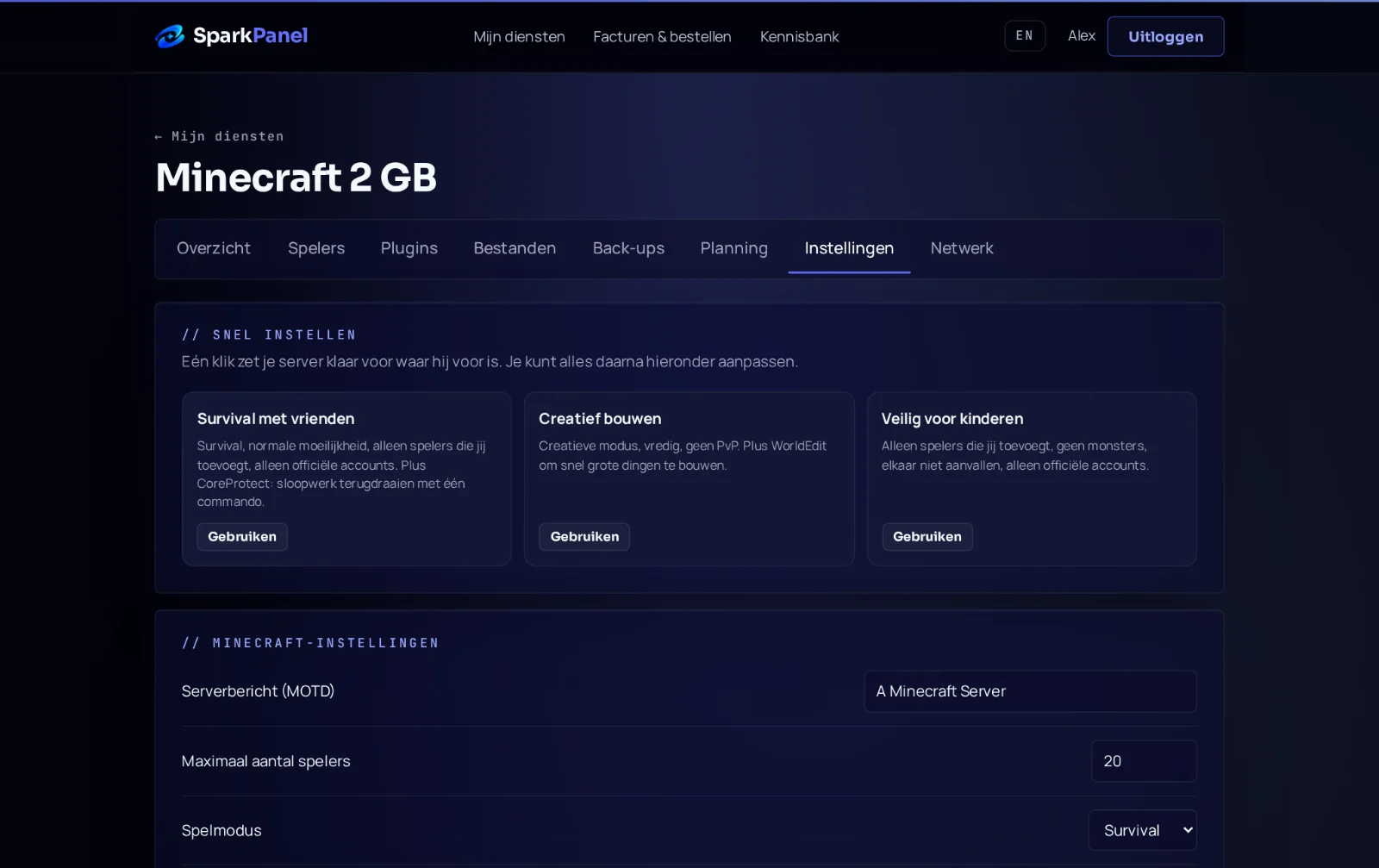
Change the main settings (server name, game mode, difficulty, cheats and the world name) in SparkPanel under Settings. Other settings, such as max-players or view-distance, are in server.properties under Files. Restart the server after a change.
view-distance to 10–16 for a smooth server; higher uses a lot of memory.5. Using your own world
- Stop the server in SparkPanel.
- Upload your world folder through Files or SFTP into the
worldsfolder. The world folder must containlevel.datand thedbfolder directly. - Under Settings, set the world name to that folder's name and start the server.
A world from the Bedrock app on your phone or PC exports as a .mcworld file, which is a zip file. Rename it to .zip, unpack it and upload the contents.
6. Updating to a new version
When a new Minecraft version comes out, players with the newest app can only join once your server is updated. Make a backup first (Backups), then choose Settings → Reinstall in SparkPanel. Your world and settings stay.