
Updated 17 November 2026
Playing on a Minecraft Realm and want more: plugins, more players, a bigger world or full control over the settings? You can move your Realm world to your own server and keep everything you built. This guide shows how, for Java and Bedrock, and what to watch out for.
1. Download your world from the Realm
Minecraft Java
- Start Minecraft and open Minecraft Realms.
- Click Configure on your Realm and go to Backups.
- Click Download latest. Minecraft saves the world in your singleplayer worlds list.
- Open the worlds folder on your computer (in the Minecraft launcher: Installations, the folder icon, then
saves) and zip the world folder.
Minecraft Bedrock
- Open your Realm's settings (the pencil icon) and go to Game.
- Click Download world.
- Find the world in your worlds list, open its settings and choose Export world. You get a
.mcworldfile.
2. Choose the right server
- Java Realm: a Minecraft Java server. Paper is a good pick: it runs plugins and loads normal worlds without changes.
- Bedrock Realm: a Minecraft Bedrock server.
- Same version or newer. A server can open a world from the same Minecraft version or an older one, never a newer one. Realms always runs the latest release, so pick the latest version on your server.
- No modded software for a Realm world, unless you really want mods. Forge, NeoForge and Fabric often run an older Minecraft version for a while, and then they can't load your newer Realm world.
How much memory you need depends on the number of players: see How much RAM does a Minecraft server need?
3. Upload the world
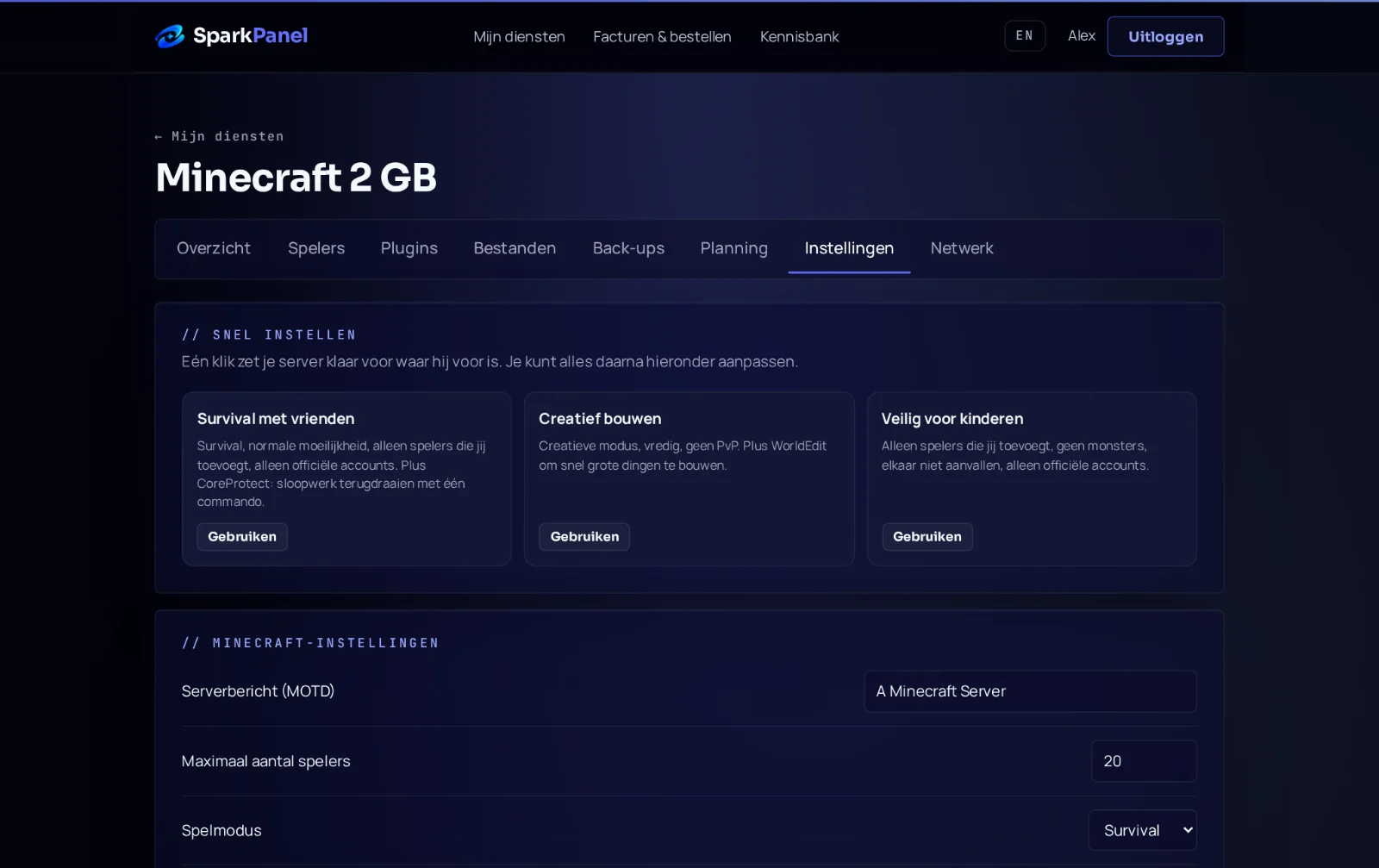
- Stop your server in SparkPanel.
- Go to Files and rename the existing
worldfolder (for example toworld-old), so you keep it as a backup. - Upload your zip and unpack it. The folder with
level.datin it has to be calledworld. - Start the server and join with the address from SparkPanel.
We move it for you, for free
Don't feel like doing it yourself? Order a server, open a ticket or email info@serverspark.nl with a download link to your world (for example Google Drive, WeTransfer or TransferNow). We set up the right software and version, put your world in place and check that it starts. Your old world folder stays on the server as a backup.
Frequently asked questions
Do my players keep their inventory and progress? Yes. Player data is inside the world folder and moves with it.
Can I add mods so everyone gets them automatically? No, Minecraft can't send mods to players: with real mods every player installs the same mods themselves. Plugins on a Paper server run on the server only, so players don't install anything. See the best Minecraft plugins.
Do my friends still need Realms? No. They join your server with the address, and only you pay for the server. See Minecraft Realms or your own server.
The server won't start after uploading. Check the console in SparkPanel. "Overworld settings missing" or a version error usually means the server runs an older Minecraft version than the world: switch to the latest version. Still stuck? Open a ticket and we'll look at it.