
Updated 17 November 2026
Want a fresh start, a world with a specific seed, or bigger biomes? On your own server you can start a new world at any time, and your old world is kept. This guide shows how, for Java and Bedrock, and how to go back to your old world later.
1. Start a new world (old one kept)
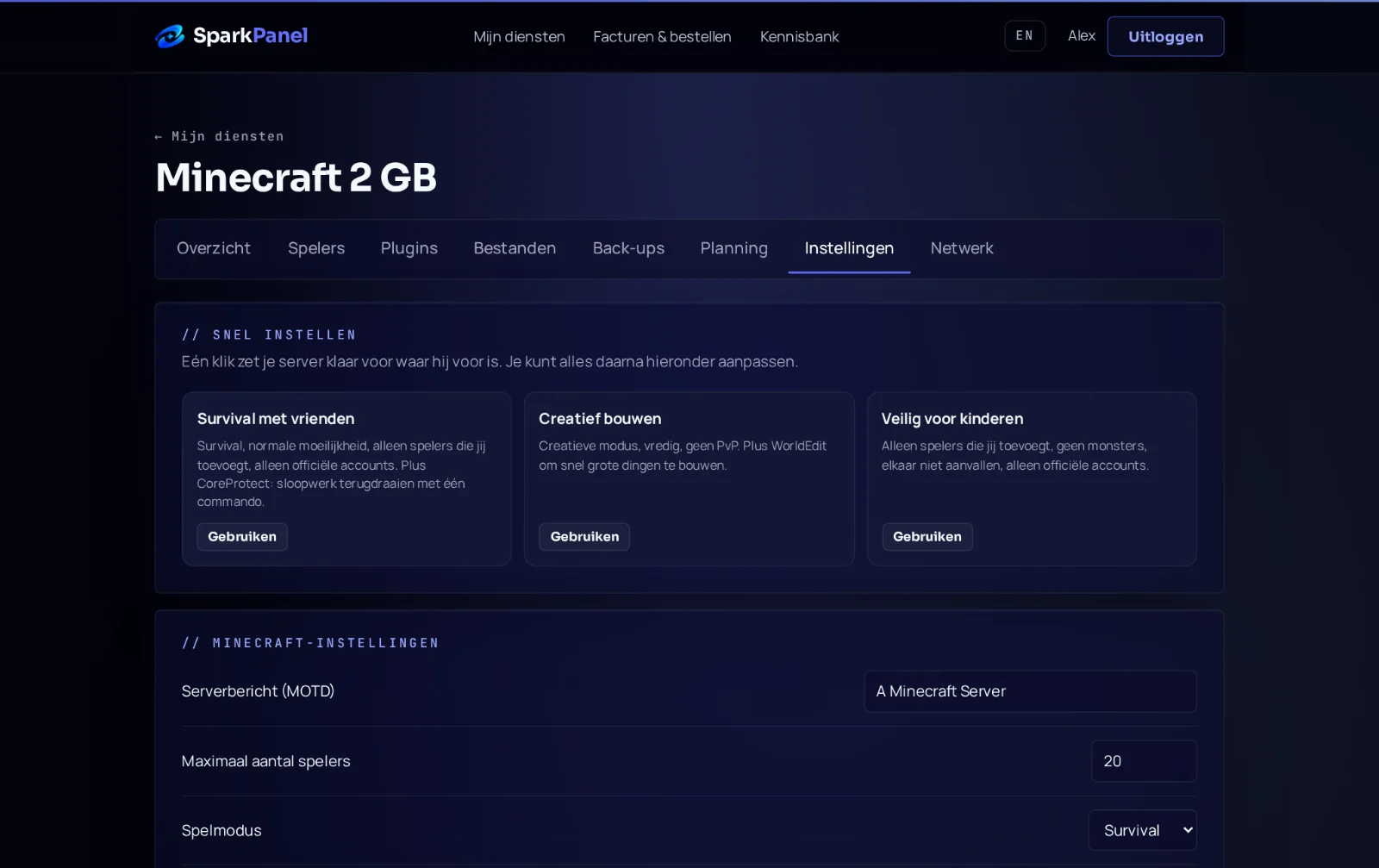
- Stop your server in SparkPanel.
- Go to Settings and open Start over with a new world.
- Tick I stopped my server and want to start over and click Start over.
- Start the server. It creates a brand-new world on the first start.
Your current world isn't deleted: it gets a new name and stays under Files. This works on Minecraft Java and Bedrock.
2. Choose a seed
The seed decides what the world looks like. The same seed gives the same landscape, so you can use a seed you found online or one from your singleplayer world.
- Do step 1, but don't start the server yet.
- Go to Files and open
server.properties. - Fill in the seed after
level-seed=, for examplelevel-seed=8675309, and save. - Start the server. The new world uses your seed.
/seed in the game. The seed only counts when a world is created, so changing it later does nothing for the existing world.3. Change the world type (Java)
In the same server.properties, level-type sets the kind of world. Change it before the first start of the new world:
minecraft\:normal: the normal world (default)minecraft\:large_biomes: the same, with much bigger biomesminecraft\:amplified: extreme mountains (heavier for the server, see how much RAM)minecraft\:flat: a flat world, handy for building or minigames
More settings: server.properties explained.
Back to your old world
- Stop the server.
- In Files, rename the new world folder (for example to
world-new). - Rename your old world folder back to the name in
level-nameinserver.properties(usuallyworld). - Start the server.
Old worlds take disk space. Don't need one any more? Download it first with SFTP (the login details are on the Files page) and then delete it.
Frequently asked questions
Do players lose their items in the new world? Yes, inventories and progress belong to a world. In the old world everything stays as it was.
Can I keep the Nether and the End and only reset the Overworld? Not with the button: it starts the whole world over. Ask us in a ticket if you need something special, we'll help.
Can I use my singleplayer world instead? Yes: see singleplayer world to your server.