
Updated 17 November 2026
In Enshrouded you join a server through the server list in the game: you search for its name, not its address. This guide shows how, how passwords work, and what to check when your server doesn't show up.
1. Before you start
- Start your server in SparkPanel. The first start installs the game and takes a few minutes. The server is ready when the console shows a line with
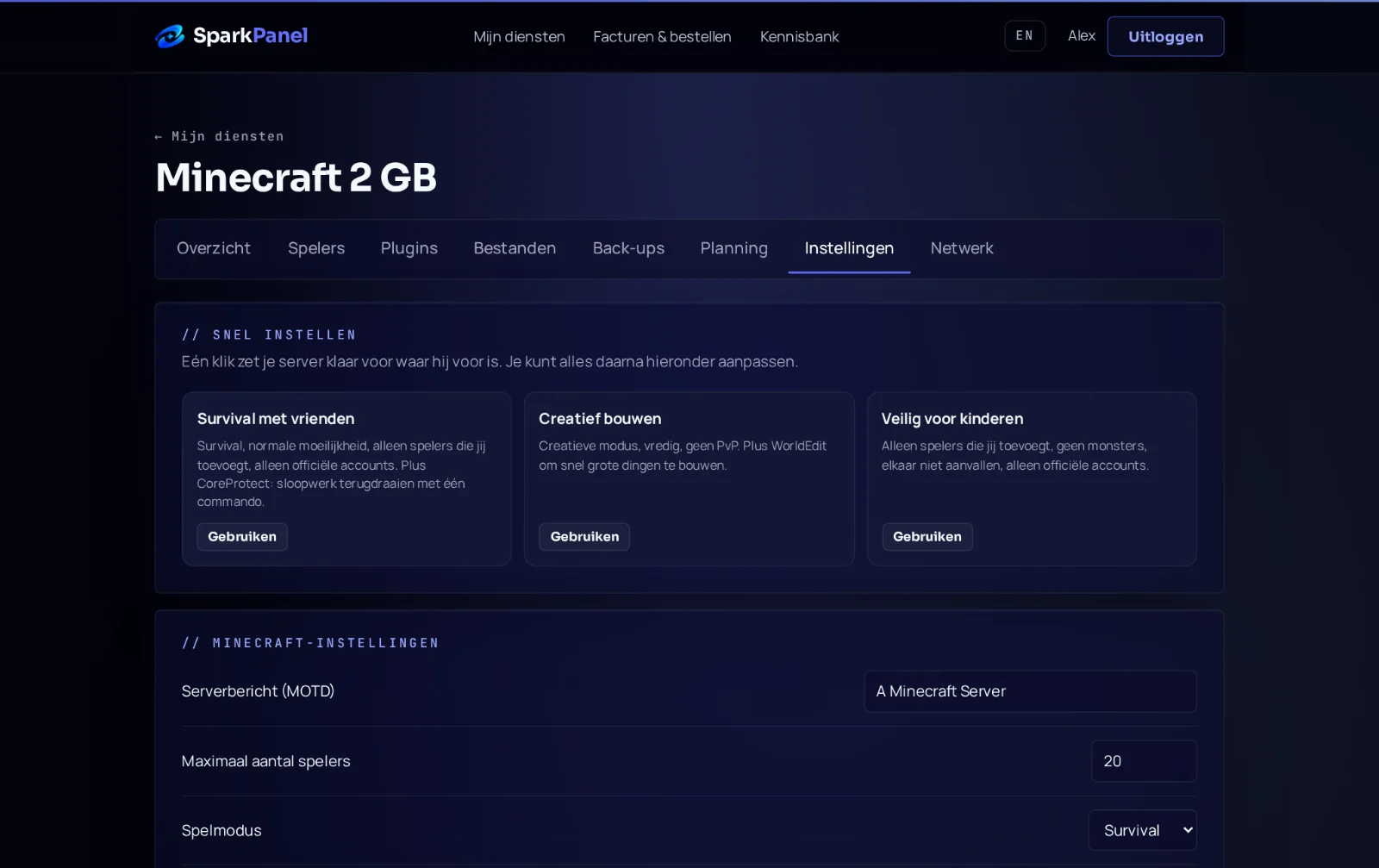
HostOnline. - Check your Server name and Server password under Settings → Quick setup in SparkPanel. Pick a name that is easy to search for. Restart after a change.
2. Join your server
- Start Enshrouded and choose Play, then Join.
- Type your server name in the search field. Searching for a unique part of the name is fastest.
- Select your server and join. With a password, the game asks for it now.
- Choose a character or create a new one, and you are in.
Your friends do exactly the same. Up to 16 players can be online at once; the limit is Max players under Settings.
3. Passwords
The Server password from SparkPanel is the password players enter when they join. Leave it empty for an open server that anyone who finds it can join. Changed it? Restart the server, and tell your friends the new password.
4. It doesn't work
- Server not in the list: check that the server runs and the console shows
HostOnline. A fresh server can take a minute or two to appear. Search for the exact name and clear any filters in the join screen. - Wrong password: check the password under Settings in SparkPanel; it is case sensitive. Restart the server after changing it.
- Server is full: raise Max players under Settings (16 at most) and restart.
- Version mismatch after a game update: restart the server so it installs the update, and update your game in Steam.
Still stuck? Send us a ticket or ask in our Discord with your service number. See also set up your Enshrouded server.