
Updated 3 November 2026
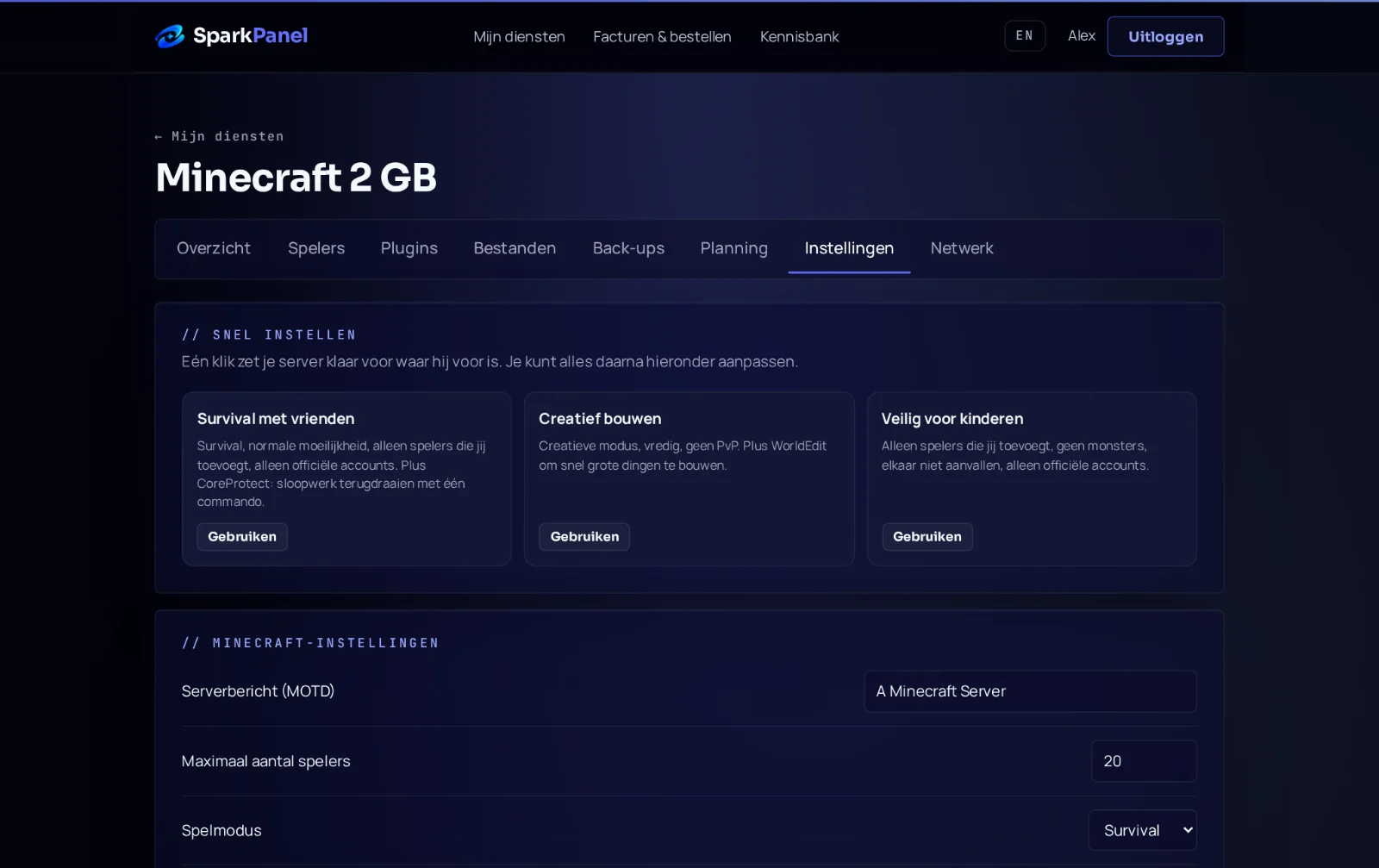
This guide shows how to set up your Palworld server: name, password, admin rights and how friends join. You change the settings in SparkPanel under Settings.
1. Name and password
- Open your server in SparkPanel and go to Settings.
- Server Name and Server Description are what players see in the server list.
- Fill in Server Password if only your friends may join. Leave it empty for an open server.
- Max Players is how many players can be online at once.
- Restart the server.
2. Join your server
- Start Palworld and choose Join Multiplayer Game.
- At the bottom of the screen, enter the address from SparkPanel under Connect, for example
g-fi-01.serverspark.nl:25570, and click Connect. - Enter the password if you set one.
Your server also appears in the community server list under its name. Crossplay Platforms under Settings decides which platforms may join; by default that is Steam, Xbox, PS5 and Mac.
3. Become admin
Every server gets its own random Admin Password; you'll find it under Settings. In the game, open the chat and type /AdminPassword followed by that password. After that you can use admin commands such as /KickPlayer and /Save.
4. World settings
Other world options, such as experience rate and day length, are in Pal/Saved/Config/LinuxServer/PalWorldSettings.ini in Files. Stop the server before you edit that file. Options that also appear under Settings (name, passwords, players) are set from there.
5. Backups
We make a backup of your server every night. Before big changes, make an extra one via Backups → Create backup. Want to move a co-op world from your own PC? That takes a few extra steps; open a ticket and we'll do it with you.
Which plan?
4 GB works for a small group. Palworld uses more memory the longer a world runs and the more bases there are, so take 8 GB for bigger groups. You can upgrade at any time.